You only do two things you already do: search a keyword and scroll, and open a few notes to read. Infomelt does the organising, exporting and analysis. Watch the 30-second demo, then follow the 10 steps; the first run takes about half an hour.
30-second demo: keywords → filters → scroll → open notes → pass 2 → next keyword → export → cloud analysis. (Captions in the video are Chinese; the steps below are the same.)
Enter 1–5 keywords, one per line. A single keyword can't tell you whether it's good; several side by side show which deserves budget. Click Start capture on a keyword and its search page opens with the side panel on the Capture tab.

Pass 1 looks at what was hottest in the last week. Sort by Most liked, time = Past week, then press Start pass 1 in the panel. The platform resets filters when you change keyword, so set them once per keyword; the panel reminds you.
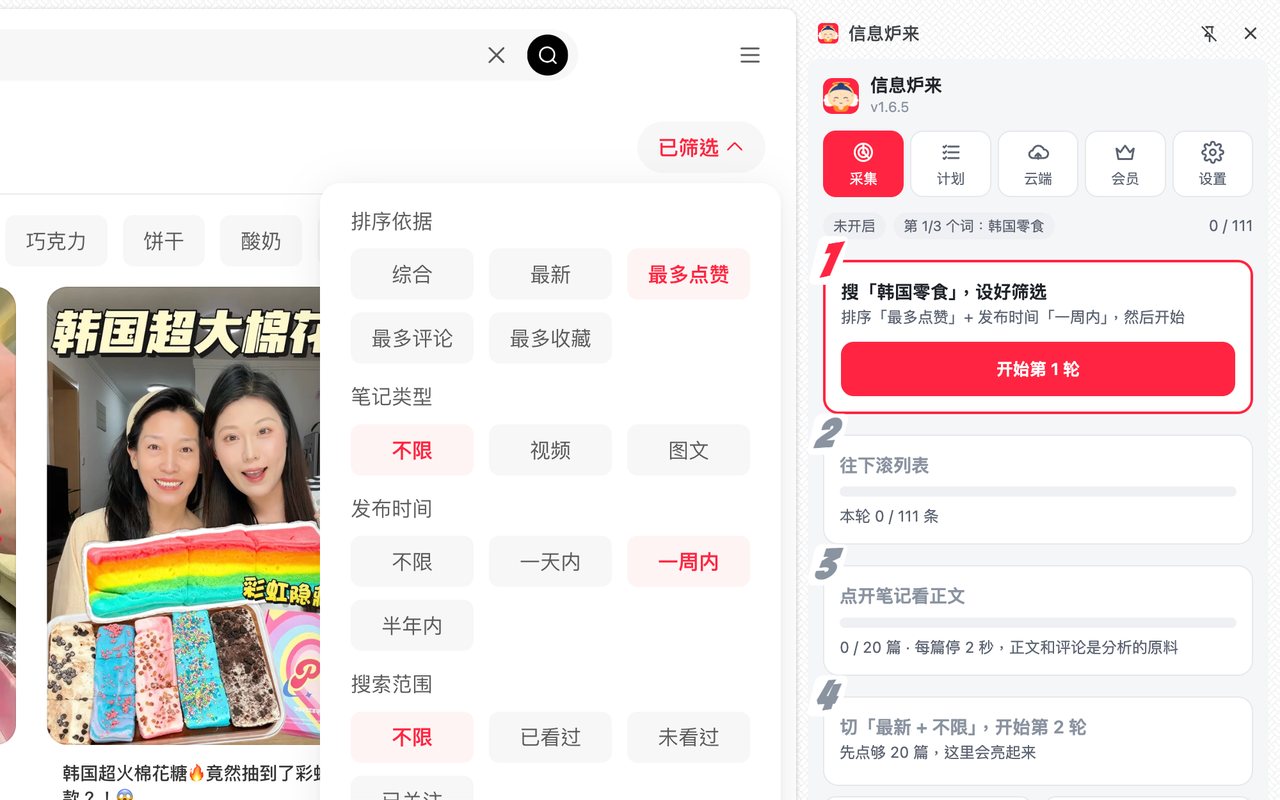
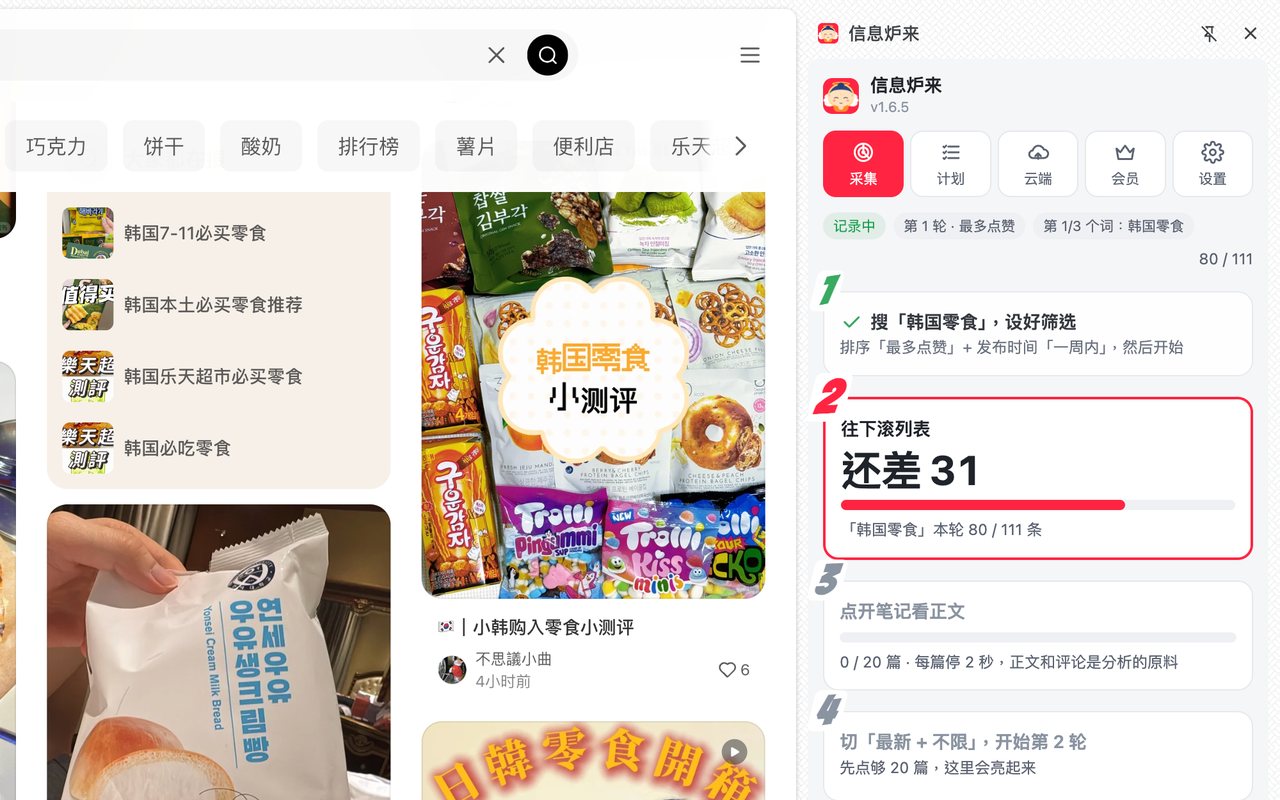
Nothing special to do. The big number in step 2 is how many more notes you need; it stops automatically at the target. It never scrolls or clicks for you — it only records what you already saw.
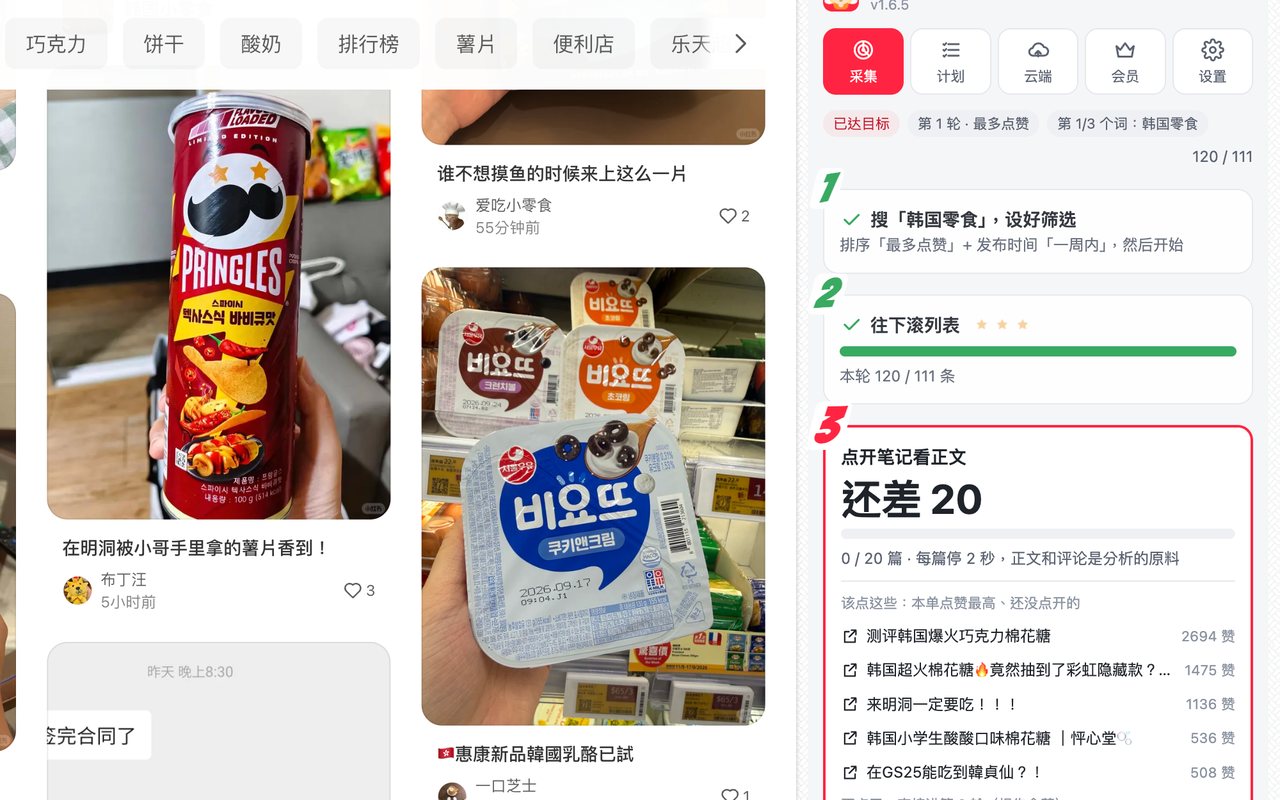
Once the list is full, step 3 lists the most-liked notes you haven't opened yet. Open each one for about 2 seconds; the body text and comments are recorded automatically. 15–30 on Xiaohongshu, 6 on Douyin is enough.
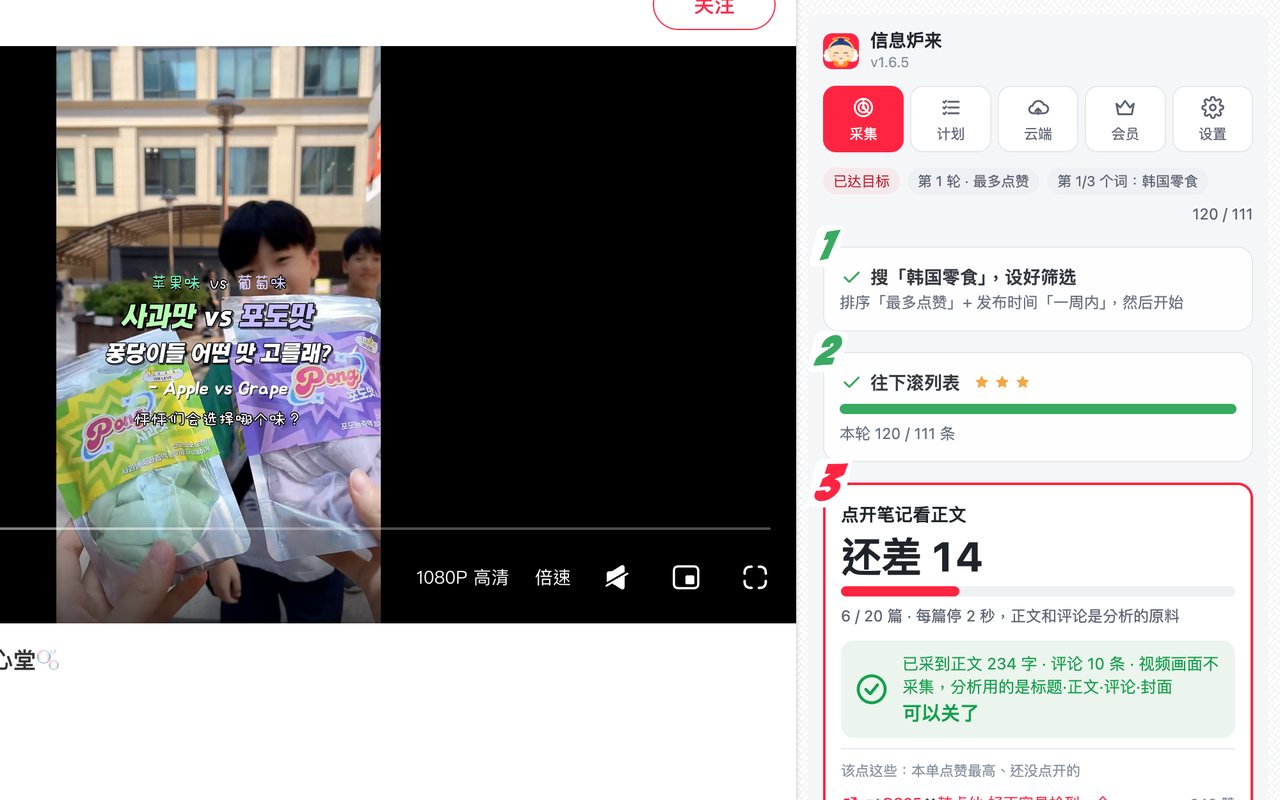
After opening a note the panel shows how much text and how many comments were captured and says you can close it. For videos it records title, text, comments and cover, never the video itself.
Pass 2 looks at what was just published. Sort by Latest, time = Any, press Start pass 2. No need to open notes in pass 2; just scroll. The report's rising signals come from this pass.
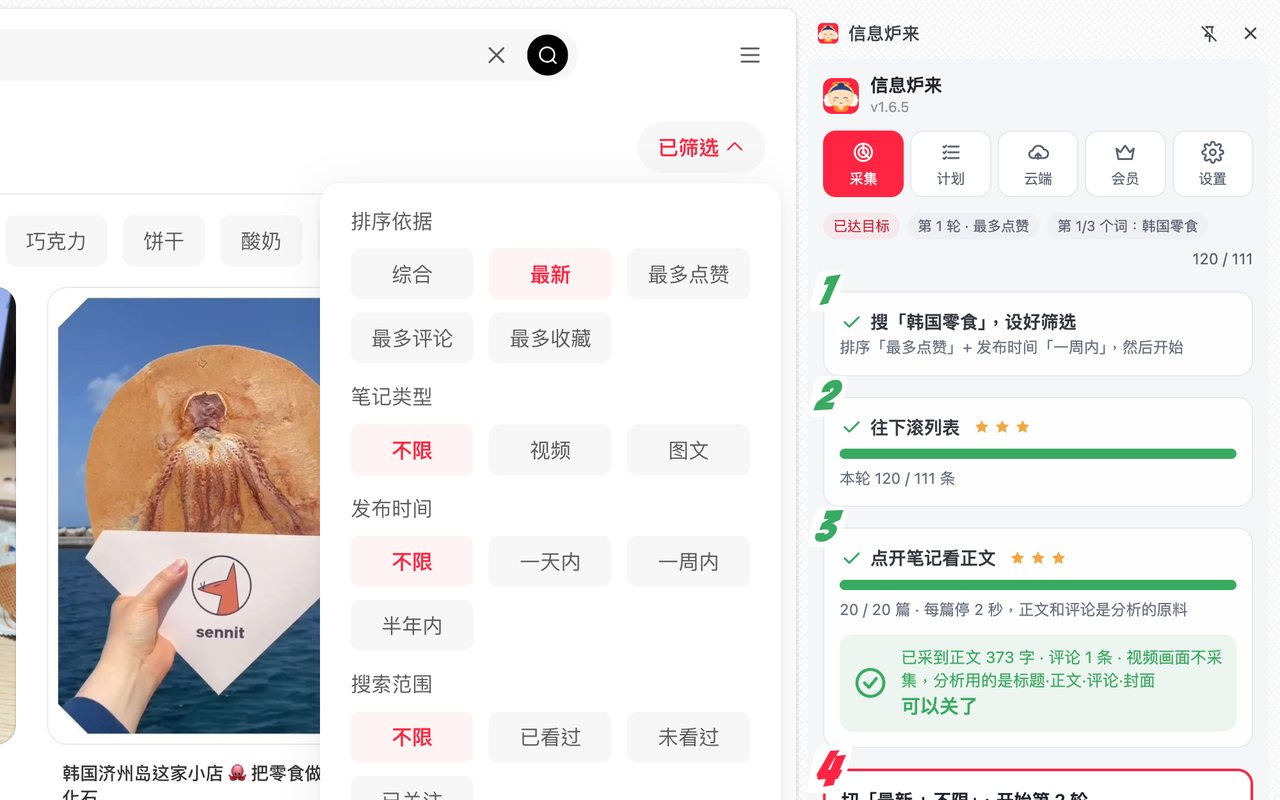
With several keywords, finish both passes of one before moving on. Step 4 shows “Search next keyword”; click it, set filters back to Most liked + Past week, and press Start pass 1.

When every keyword is finished the panel shows “Cloud analysis → report”. “Start a new batch” is a separate batch and clears the current data — don't confuse it with switching keyword.

The spreadsheet is saved under Downloads / Infomelt / capture / keyword_date with title, author, likes, saves, comments, publish time, link, body text, comments and cover thumbnails. This step is entirely local: no login, nothing uploaded.

On the Cloud tab answer what you sell / on camera or not / target audience (optional) and press Start cloud analysis. Author names and IDs are stripped in your browser before upload. The report lands in Downloads / Infomelt / reports: the analysis Excel with covers, the content brief and the readout.

Every note you scrolled past goes into the report. Title, likes, saves, publish time and cover feed the template library, rising signals and keyword comparison. The only limit is notes per batch (Medium 300, Large 400, XL 500) and the panel stops at the target by itself.
Notes you opened get deep analysis, capped by plan: Medium 30 per batch, Large 45, XL 60 — per batch, not per keyword; the per-keyword target in the panel is that cap split evenly. If you open more than the cap, the most engaged ones are kept by default (Settings lets you keep the first opened instead); the rest still count in list stats and no extra run is charged. The panel warns you when you reach the cap.
Deep analysis looks at four things: title, body text, comments and images. Images means the cover plus up to 3 (cover, 2nd, 3rd), enough to see how a post hooks, develops and closes. Video notes contribute cover and text only; frames and audio are not analysed. Analysing all images (up to 9) is reserved as an XL / Enterprise option, not yet enabled.
Order in the report: the analysis sheet and the per-note plans are sorted recommended-first, then by likes.
A manually installed copy doesn't update itself. When a new version is out, a red line appears at the top of the panel; download, unzip over the old folder and click Reload on the extensions page. Your data is kept.
Cloud analysis can be tried with a trial code for 2 runs before you decide.
Chrome Web StoreEdge Add-onsPricing